Dell Technologies
Giving Dell’s icons one set of rules to follow.
Overview
Overview · The moment
“Which corner is right?” There wasn’t yet a page that said so.
When a Dell designer draws a new icon, they match the icons around it. But drawn by many hands over many years, the icons around it don’t always agree, and in my first week my notes on the library piled up.
Individually these are small. At the level of a system they cost. My brief was to audit both libraries, find the inconsistencies, and write guidelines that gave everyone one path to follow, built from what already worked, the feel of the Dell brand, and what fit alongside Dell’s other systems.
One trash can has rounded corners and the one beside it doesn’t.
One grid icon has sharp 90° corners; the next has a slight radius.
A metaphor shared by hardware and software, drawn differently in each.
Process
Research
An audit of five icon systems: IBM, Google, HPE, Lenovo, Atlassian
Collaboration
A sit-down with Jerry, one of Dell’s hardware icon designers
Alignment
Hardware’s constraints set the order: start from hardware, bring software into line
High-Level Analysis
A first draft of the guidelines, from Dell’s own documents and systems like IBM’s
System Development
A dot-based check system, so every icon is judged the same way
Microscopic Analysis
130 icons under the microscope; the findings rewrote the guidelines
Research · The surprise
Dell had the intent; a shared system wasn’t there yet. And hardware had good reasons not to bend.
I started with the systems Dell would be measured against. Dell’s intent was clear; what it didn’t have yet was a shared system to hold it. The judgment sat with its designers, who worked by eye.
Then I took the hardware icons I’d flagged to Jerry, one of Dell’s hardware icon designers, and the ground shifted. Hardware icons live on servers, and some cannot be redrawn. Any unification had to start from hardware’s constraints and bring software into alignment, not the other way around.
IBM, Google, HPE, Lenovo and Atlassian. Three of the four documented systems share one logic: rounded on the outside, sharp on the inside. Almost none has a hardware icon system at all; they lean on the same standardized symbols. Dell: mixed on both counts, with its rules not yet conceptualized.

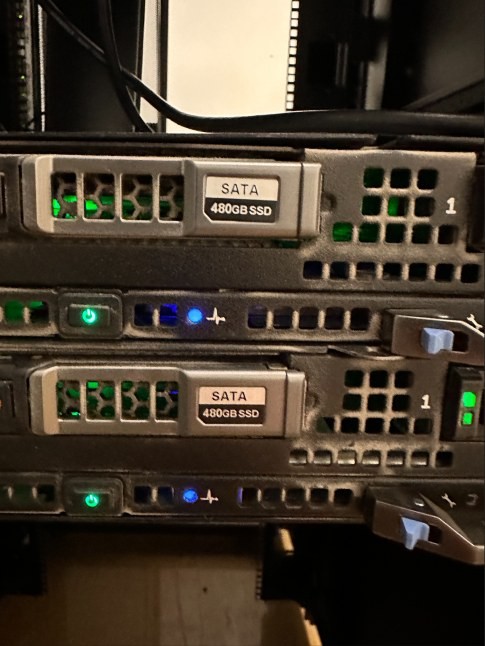

I went to the lab and found them on the machines: printed, embossed, lit behind LEDs. Some follow ISO safety standards and cannot be redrawn. All of them need a one-point line and squared 90° corners to stay legible on metal.
What I came away with
The rules lived in people, not pages.
Designers matched the icons around them; there was no shared system to check against yet.
Hardware has hard limits.
ISO standards, LEDs and print decide what a hardware icon can be.
The industry shares one logic.
Rounded outside, sharp inside, flat end caps. Dell could stand on it.
Alignment · The reframe
How might we define Dell’s icons so that hardware and software stay distinct where they have to1, and read as one family2 everywhere else?
What the guidelines had to do
Start from hardware
Rigid, squared, structurally strong. The order of work follows its limits.
Let software be softer
Slimmer and rounder, but on the same corner and stroke rules.
Set aside what can’t change
ISO and caution icons get their own category, not a redraw.
Be checkable
A designer can tell whether an icon passes, without asking anyone.
High-Level Analysis · The doubt
A first draft told me what should be true. It didn’t tell me what was wrong.
I drafted a first version of the guidelines from Dell’s own documents, the sections every mature system shares, and the hardware-first direction. Even that draft surfaced inconsistencies, and I corrected a handful by hand.
But the library holds hundreds of icons, and “this looks off to me” is not a rule anyone else can repeat.
Guidelines · version one
Built from Dell’s existing documents, the sections every mature system shares, and the hardware-first direction.
What even a draft caught
A checkmark a few degrees off a right angle. Corrected to a true 90° turn.
Rounded inner corners and angles on no increment at all. Corrected to sharp inner corners and 60° angles.
The question I took into the next phaseCould I make the check itself repeatable, so anyone could run it, and so the findings fed the guidelines instead of my gut?
System Development · The audit system
Two checkers, six dots, three colours.
I built two overlays in Figma. A square checker tests an icon’s size, stroke, corner curve and negative space at once; a fan of lines tests every angle. Six coloured markers name where an icon drifts from the rules, and three status colours give the verdict.
Then I went through the software set icon by icon.
Checkers
The square tests size, stroke, corner curve and negative space at once. The fan tests every angle.
Issue markers
Status
One icon, audited
A rounded handle end, a mask narrower than the stroke, a soft corner, and a point off the pixel grid. Every dot is a rule it had drifted from.
Microscopic Analysis · The proof
130 icons went under the microscope. Patterns replaced hunches.
The findings fell into clusters: end caps first, masking space second, then whole families that disagreed with themselves.
Each cluster became a rule. The guidelines went from theory to a tool, driven by real issues in the real library.
Biggest cluster · end caps
Rounded where they should be flat, most of all on secondary icons.
Second cluster · masking
Flat, rounded and unconventional masks mixed across one set.
Families that disagree
Speaker icons at two sizes, only one with a line through it. Two presentation icons drawn as different objects.
Solution · The answer
One recipe for every new icon: eight sections of one document, each with do and don’t examples, plus the checkers and dots as a review step.
Grid
32×32 with no padding, and a 20×20 inner grid for secondary icons and overlays.
Base grid
Points and caps land on pixels. No decimal coordinates.
Masking
One mask shape per icon type. Negative space equals the stroke, never under 2px.
Style
“Hello, it’s Roboto.” Rounded exteriors, 90° interiors, square caps.
Strokes
2px at 32px, from 1px at 16 to 3px at 48. Mono-weight, flat terminals.
Perspective
Front-facing and flat. Depth only where the metaphor needs it.
Corners
2px radius at 32px by default. Square when the object is square.
Angles
90° and 45° first. Everything else in 15° increments.
The grid.
32×32 with no padding, a 20×20 inner grid for secondary icons, and every point on a pixel.
Masking and style.
One mask shape per icon type, never thinner than the stroke. Rounded outside, 90° inside, square caps.
Strokes and perspective.
2px at 32px and scaling with size, mono-weight, flat terminals. Front-facing and flat.
Corners and angles.
A 2px radius unless the object is square. 90° and 45° first, then 15° steps.
Next Steps
The first leg of a longer audit.
The audit covered the first leg of the software set. The system is built to carry on without me.
First leg of the software set
130 icons audited with the dot system; the findings in the guidelines.
Second leg of the software set
The same checkers and dots over the rest of the library.
Hardware correction pass
Curves made rigid to match the set; ISO and caution icons set aside.
Adoption
The dot system as a review step for every new icon.
Reflection
What stayed with me.
Consistency needs a system
Going through both libraries one by one, I saw that one-off fixes never hold. The rules have to live somewhere everyone can check.
Distinct rules, shared logic
Hardware has real-world limits and software has room to move. The sweet spot is different treatments on the same underlying logic.
Constraints shape the possible
ISO standards, LEDs and a library built over years decided what could change. The audit showed where alignment was possible.
It took everyone
Brand goals, hardware realities and UI needs met in this work. I couldn’t have learned them without the hardware and software designers who shared them.
Keep reading...


Capital One Bank Design
UX Design